Screen recorder for developers
Record browser bug repros engineers can actually reproduce
Who this is for
Built for a specific recording job
These pages are written for people deciding whether TabCaster fits a real workflow, not for generic screen recording theory.
Frontend engineers recording UI regressions, layout breaks, or JS errors to attach to their own tickets.
Backend engineers recording the browser state that triggers an API failure or unexpected response.
Engineering leads reviewing a reported bug before triaging it to the right team.
Workflow
How to record a developer-grade bug reproduction
A useful bug repro shows the exact browser state, demonstrates the steps to reproduce, and narrates the difference between what was expected and what actually happened — in under two minutes.
- 1
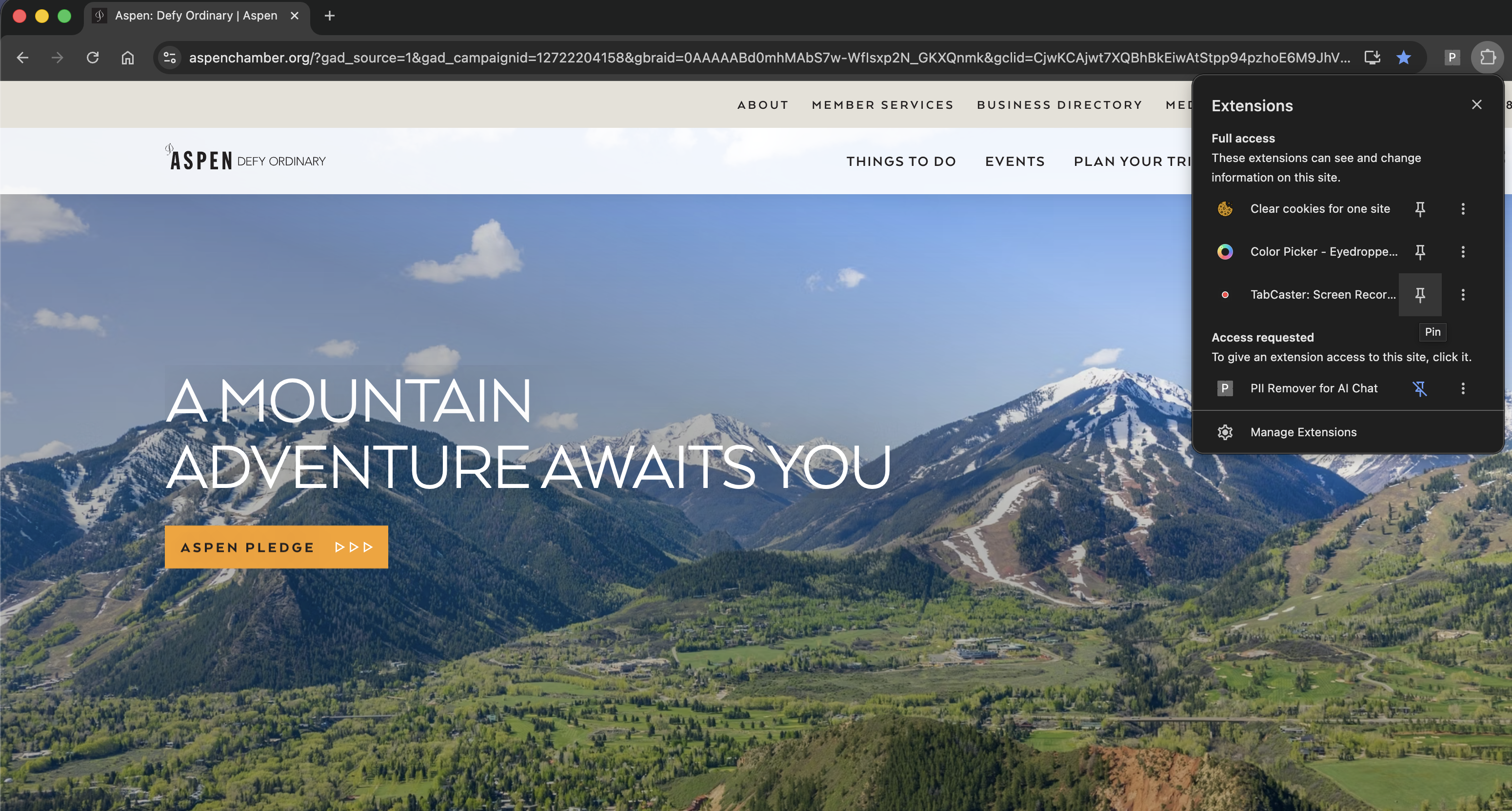
Open a clean browser state: clear relevant cookies or use a fresh profile to rule out stale session state.
- 2
Navigate to the exact URL and account state where the bug occurs.
- 3
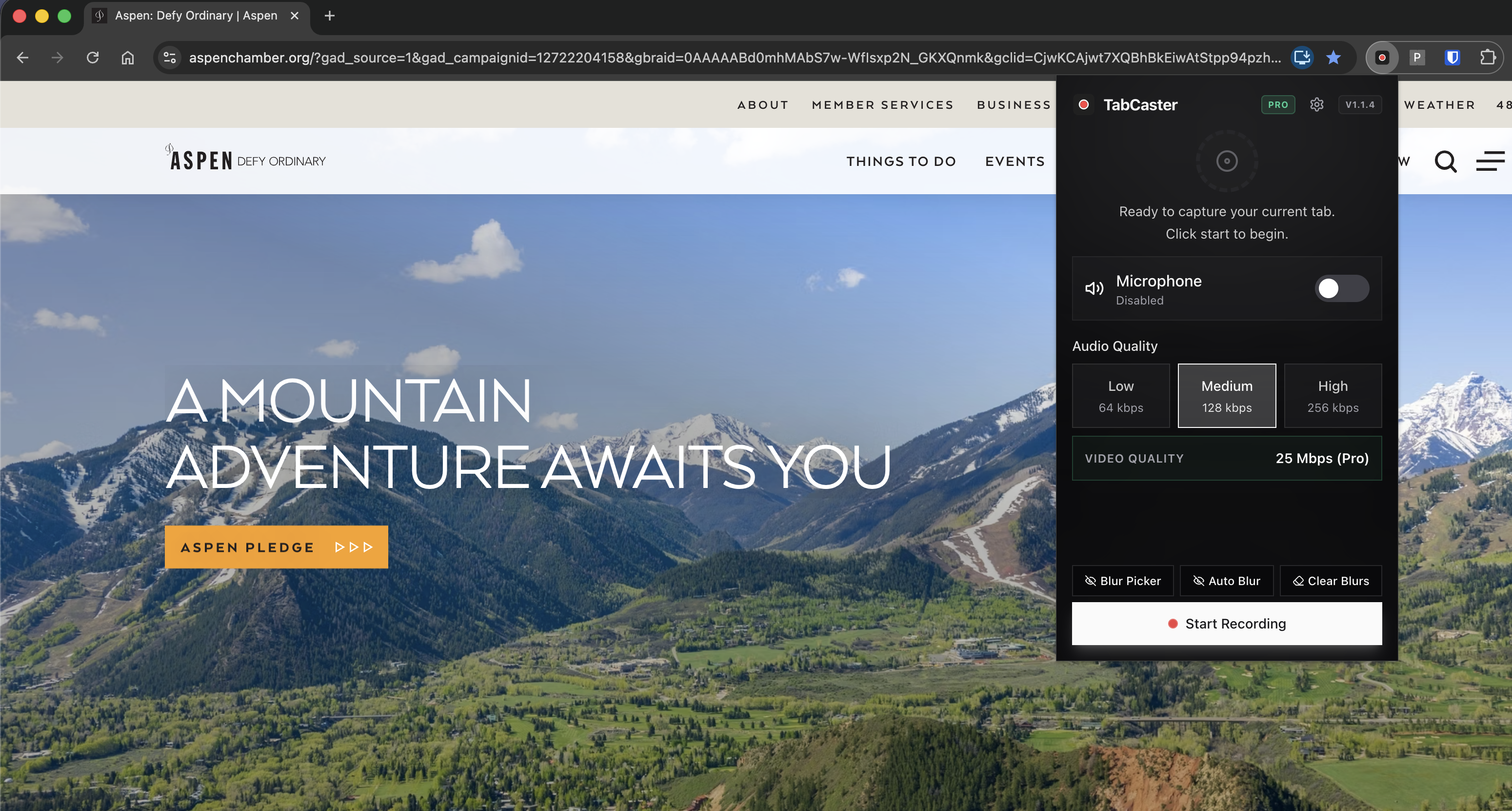
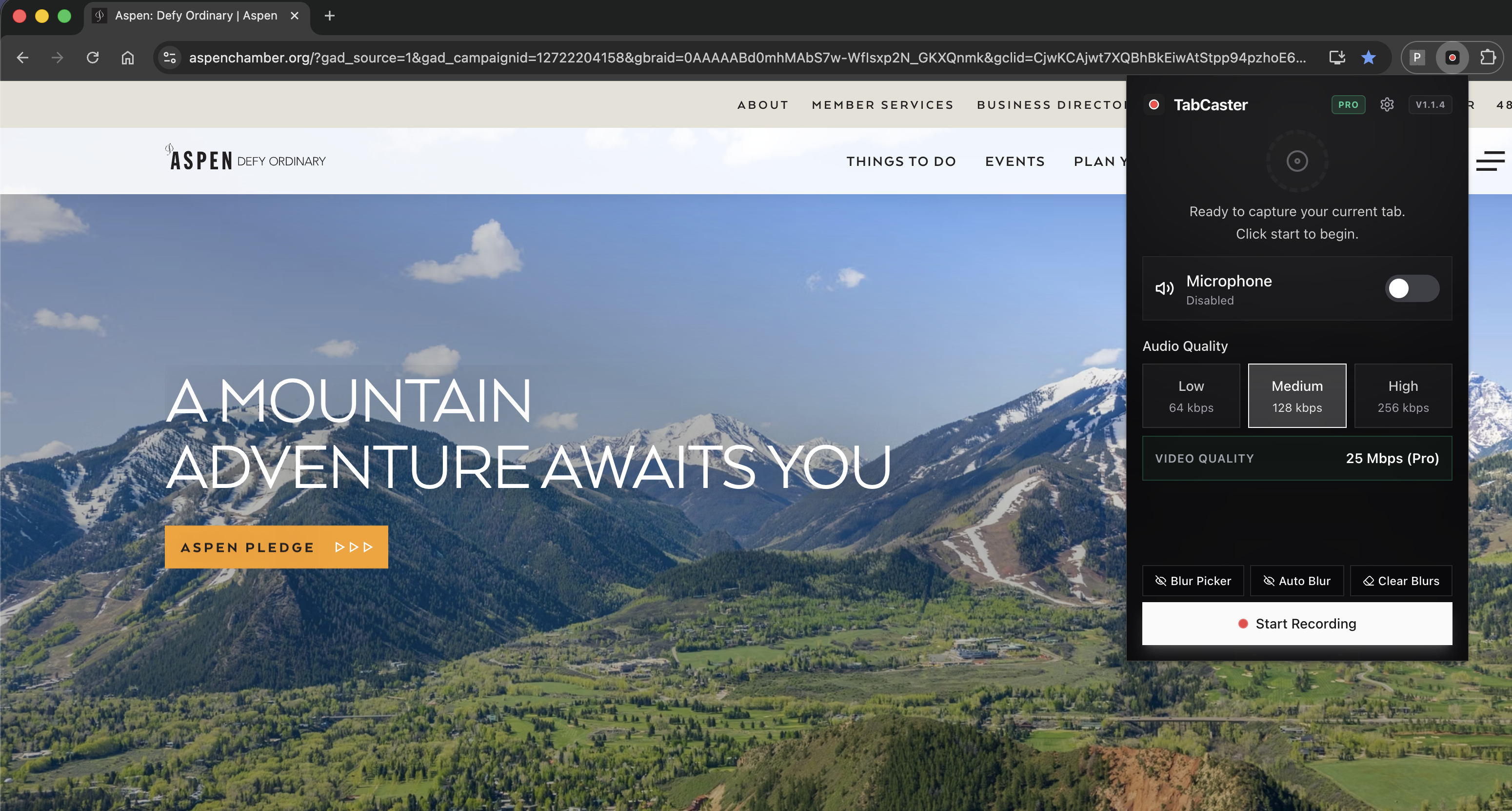
Open the TabCaster popup, enable microphone, and optionally open DevTools in the same tab before you start.
- 4
Click Record and select the browser tab. Then narrate: 'Expecting X. Now I'll trigger the bug.'
- 5
Perform the minimal steps to reproduce — no extra clicks, no unrelated navigation.
- 6
Point out the actual result on screen, then stop recording.
- 7
Attach the file to the GitHub issue, Linear ticket, Jira card, or Slack thread with a one-line description: Browser, OS, account type, and what was expected.
Why a narrated repro halves the back-and-forth with teammates
A silent recording shows clicks. A narrated recording explains intent. Saying 'I expect the modal to close after submit, but it stays open and the network tab shows a 422' gives the next engineer enough context to reproduce it without a follow-up message. The two-minute cost of narration typically saves a 30-minute async debugging thread.
Comparison
What a good bug repro recording includes vs what to leave out
| Need | TabCaster | Alternative |
|---|---|---|
| Browser and account state | Start from a clean, reproducible state. Narrate the environment: browser version, account type, feature flag if relevant. | Avoid: starting mid-session with unexplained prior navigation that the reviewer cannot replicate. |
| Expected vs actual behavior | Say 'I expect X' before triggering the bug, then point out 'this is the actual result' on screen. | Avoid: silent recordings where the reviewer has to guess what the expected behavior was. |
| Minimal reproduction steps | Keep the recording to the shortest sequence of clicks that triggers the bug. | Avoid: long recordings that include unrelated navigation — reviewers will skip through and miss the critical moment. |
Privacy
Tokens, session IDs, and internal data in browser recordings
Developer recordings often expose auth tokens, internal API responses, customer IDs, and environment URLs that should not leave the company network. Use TabCaster's blur to obscure sensitive fields before capture, and review the recording before attaching it to any ticket system that external contractors or vendors can access.
Limitations
What to know before recording
- TabCaster records the visible browser tab — it does not capture network logs, console output, or server-side traces. Attach those separately from DevTools or your logging platform.
- If the bug requires a specific race condition or timing, record multiple short attempts rather than one long session.
- Blur is a safeguard, not a substitute for using test accounts or sanitized environments when possible.
FAQ
Practical questions
Answers are visible for readers. This page does not depend on FAQ rich-result markup.
Should I record DevTools open or closed?
If the bug involves a network error, console exception, or JS error — record with DevTools open and the relevant panel visible. For UI-only bugs, DevTools may not be necessary.
Can I attach WebM files to GitHub and Linear?
GitHub and Linear both accept video file attachments in issues. If your team uses Jira, check whether your instance supports inline video preview or requires MP4.
What if the bug is intermittent and hard to reproduce on camera?
Record multiple short attempts in separate files. Include one successful repro and a note on how frequently the bug occurs. That gives the reviewer more signal than a long failed attempt.
How do I avoid exposing auth tokens in the recording?
Use TabCaster's blur on visible token fields before you start recording. For network tab recordings showing auth headers, crop or redact those portions before attaching to external tickets.
Related
Keep going
TabCaster features
See the core recording, audio, privacy, WebM, and Pro quality features.
Privacy notes
Review how local recording, downloads, and browser permissions are described.
Bug report recordings
The support and QA perspective on recording reproducible bug reports.
Private screen recorder
How local recording helps when browser state includes sensitive internal data.
Record the tab, keep the file.
Install TabCaster, record a focused browser workflow, and save a local WebM file without a required cloud upload.
Add to Chrome Free