How to record Zoom without host permission
How to record a Zoom meeting without host permission
Who this is for
Built for a specific recording job
These pages are written for people deciding whether TabCaster fits a real workflow, not for generic screen recording theory.
Meeting participants who want a personal local copy without waiting for the host to share a cloud recording.
People on Zoom Basic (free) plans where built-in recording requires host permission and a paid account.
Teams who need the recording file immediately rather than waiting for Zoom's cloud processing.
Workflow
Two ways to record Zoom with TabCaster
The approach depends on whether you join Zoom in the browser or use the Zoom desktop app. Both work — the setup step is slightly different.
- 1
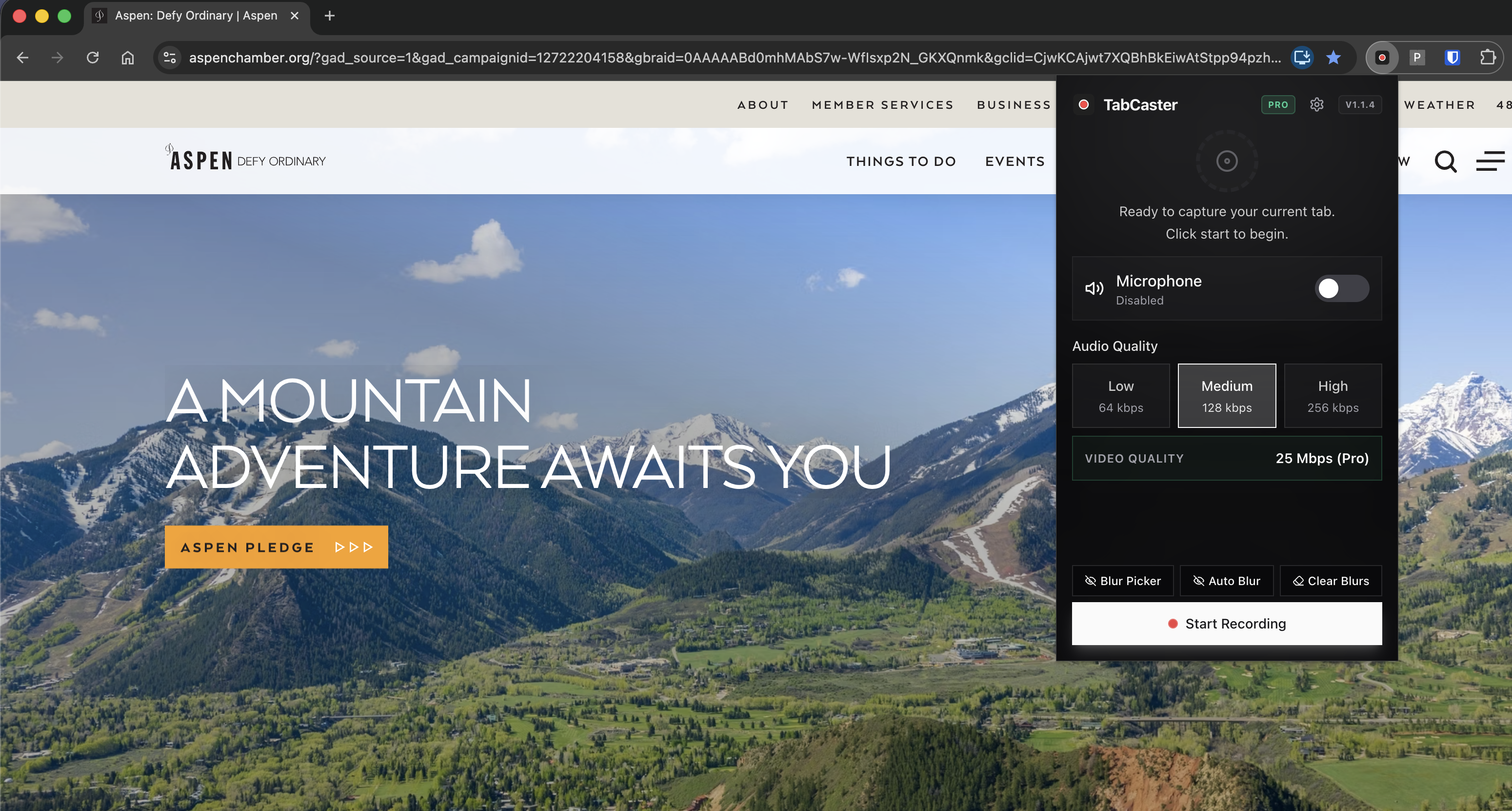
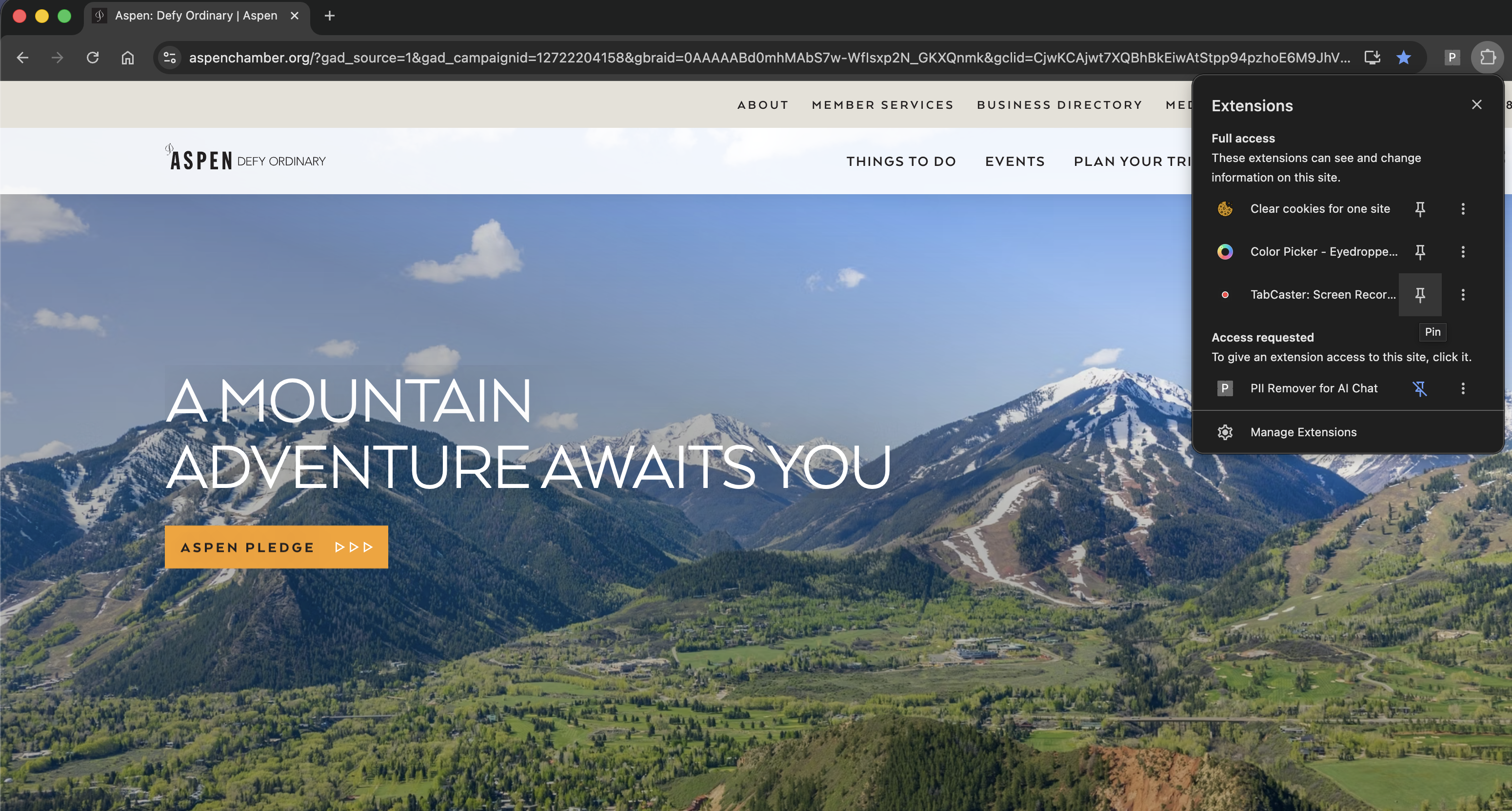
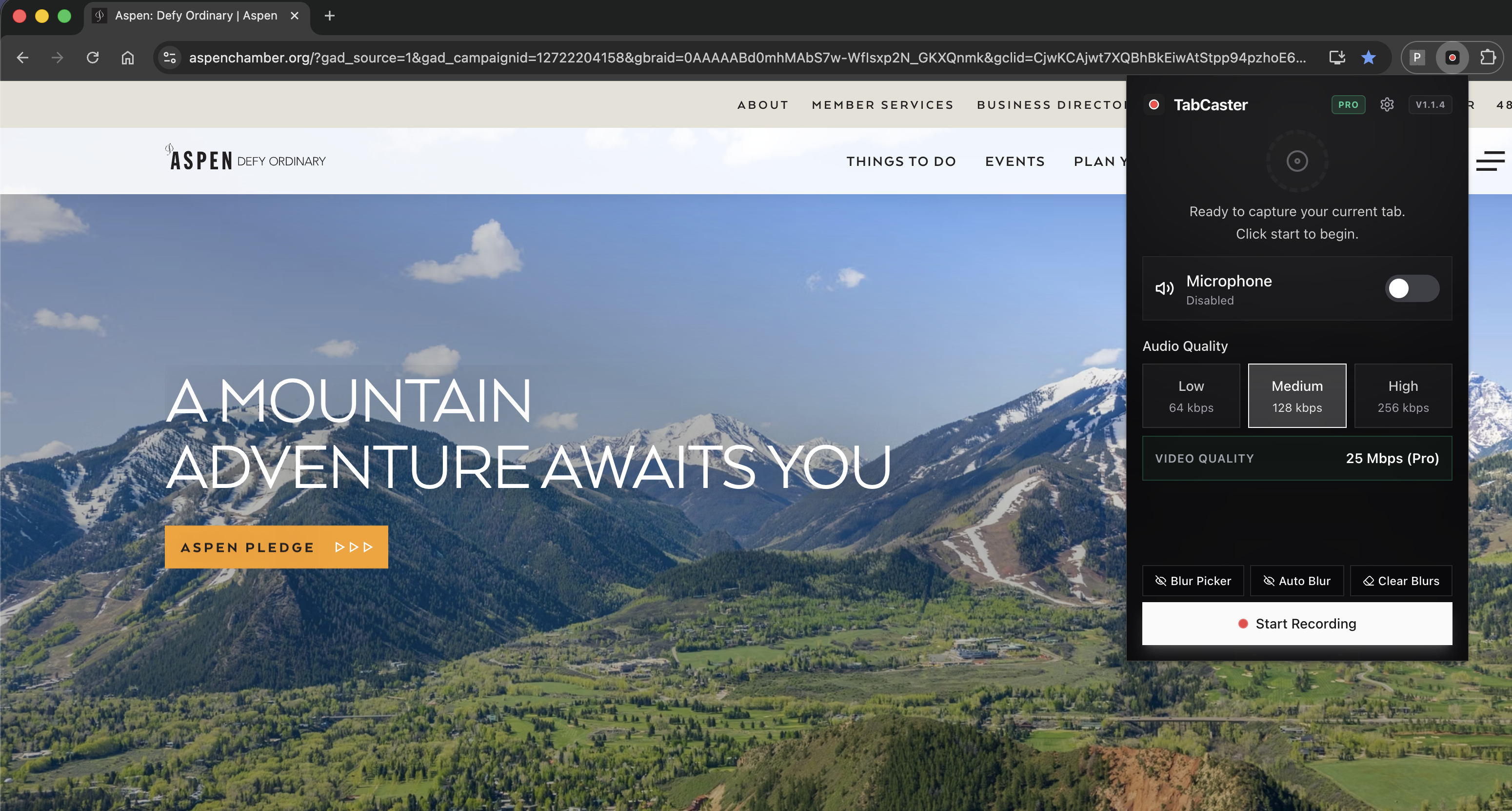
Option A — Browser: Join the meeting at app.zoom.us in Chrome. Click the TabCaster icon, select the Zoom tab when prompted, and click Record.
- 2
Option B — Desktop app: Open TabCaster, click Record, and when Chrome asks for the capture source, select 'Entire screen' and choose the screen showing the Zoom window.
- 3
Toggle microphone on in TabCaster if you want your own voice in the recording alongside Zoom's meeting audio.
- 4
The meeting runs normally. A red dot in the Chrome tab or toolbar confirms recording is active.
- 5
Click Stop Recording when the meeting ends. The file saves to Downloads immediately.
Why participants need a local recording option
Zoom's built-in local recording requires the host to grant permission or have a paid account. Cloud recording requires a paid Zoom plan and saves to Zoom's cloud, not your device. TabCaster records your screen directly using Chrome's MediaRecorder API — no permission from the host, no Zoom plan upgrade, and no delay while Zoom processes the cloud file.
Comparison
TabCaster vs Zoom built-in recording
| Need | TabCaster | Alternative |
|---|---|---|
| No host permission needed | Records your screen independently — no host action required. | Zoom local recording requires the host to grant participant recording permission. |
| No paid Zoom plan | Works with any Zoom account tier, including free Basic. | Zoom cloud recording requires a paid plan (Pro or higher). |
| File available immediately | Saves to Downloads the moment you stop recording. | Zoom cloud recordings require processing time before the file is accessible. |
| Transcripts and smart chapters | Not included — TabCaster produces a plain video file. | Zoom cloud recording on paid plans includes AI-generated transcripts and chapters. |
Privacy
Your obligations when recording without host-initiated recording
Just because TabCaster doesn't require host permission doesn't mean recording is without obligations. In many jurisdictions, all participants in a call must consent to being recorded. Inform the host and all participants before you record, follow your organization's policy, and check the consent laws in your location and the location of other participants.
Limitations
What to know before recording
- TabCaster records your view of the meeting — the participant grid layout, pinned video, and shared screens as they appear on your screen.
- If Zoom's shared screen content fills your display, that content will be in the recording.
- TabCaster does not capture Zoom's meeting metadata (participant list, timestamps, chat log) — save those separately from Zoom if needed.
- Very long Zoom calls produce large files; disk space and browser memory are the practical limits.
- Zoom's cloud recording (with transcript and smart chapters) is not replicated by TabCaster — TabCaster produces a plain video file only.
FAQ
Practical questions
Answers are visible for readers. This page does not depend on FAQ rich-result markup.
Is it legal to record a Zoom meeting without the host knowing?
Legality depends on jurisdiction and meeting context. Many places require all-party consent before recording. Always inform participants before recording, regardless of which tool you use.
Which is better for recording Zoom — browser or desktop app?
Browser (app.zoom.us) gives cleaner tab-only capture. Desktop app requires selecting the full screen in TabCaster, which captures everything on that display.
Does TabCaster capture Zoom's shared screen content?
Yes — if a participant shares their screen and it appears in your Zoom window, TabCaster will capture it as part of the recording.
Will Zoom tell the host I recorded the meeting?
TabCaster does not interact with Zoom's systems and does not notify the host. You are responsible for informing participants yourself.
Related
Keep going
TabCaster features
See the core recording, audio, privacy, WebM, and Pro quality features.
Privacy notes
Review how local recording, downloads, and browser permissions are described.
How to record Google Meet
The same tab-recording approach applied to Google Meet.
How to record Microsoft Teams
Record Teams meetings from the browser with no plan upgrade.
Record the tab, keep the file.
Install TabCaster, record a focused browser workflow, and save a local WebM file without a required cloud upload.
Add to Chrome Free