How to record Google Meet
How to record a Google Meet from your browser tab
Who this is for
Built for a specific recording job
These pages are written for people deciding whether TabCaster fits a real workflow, not for generic screen recording theory.
People who need a local copy of a meeting without relying on Google Meet's built-in recording (which requires a Google Workspace plan).
Hosts and participants who want to keep a private file rather than a hosted recording in Google Drive.
Teams recording product walkthroughs, training sessions, or client calls that run through Google Meet.
Workflow
Step-by-step: record a Google Meet with TabCaster
TabCaster records the browser tab where Meet is running. You will see the meeting video, screen shares, and participant grid — exactly as it appears in your tab.
- 1
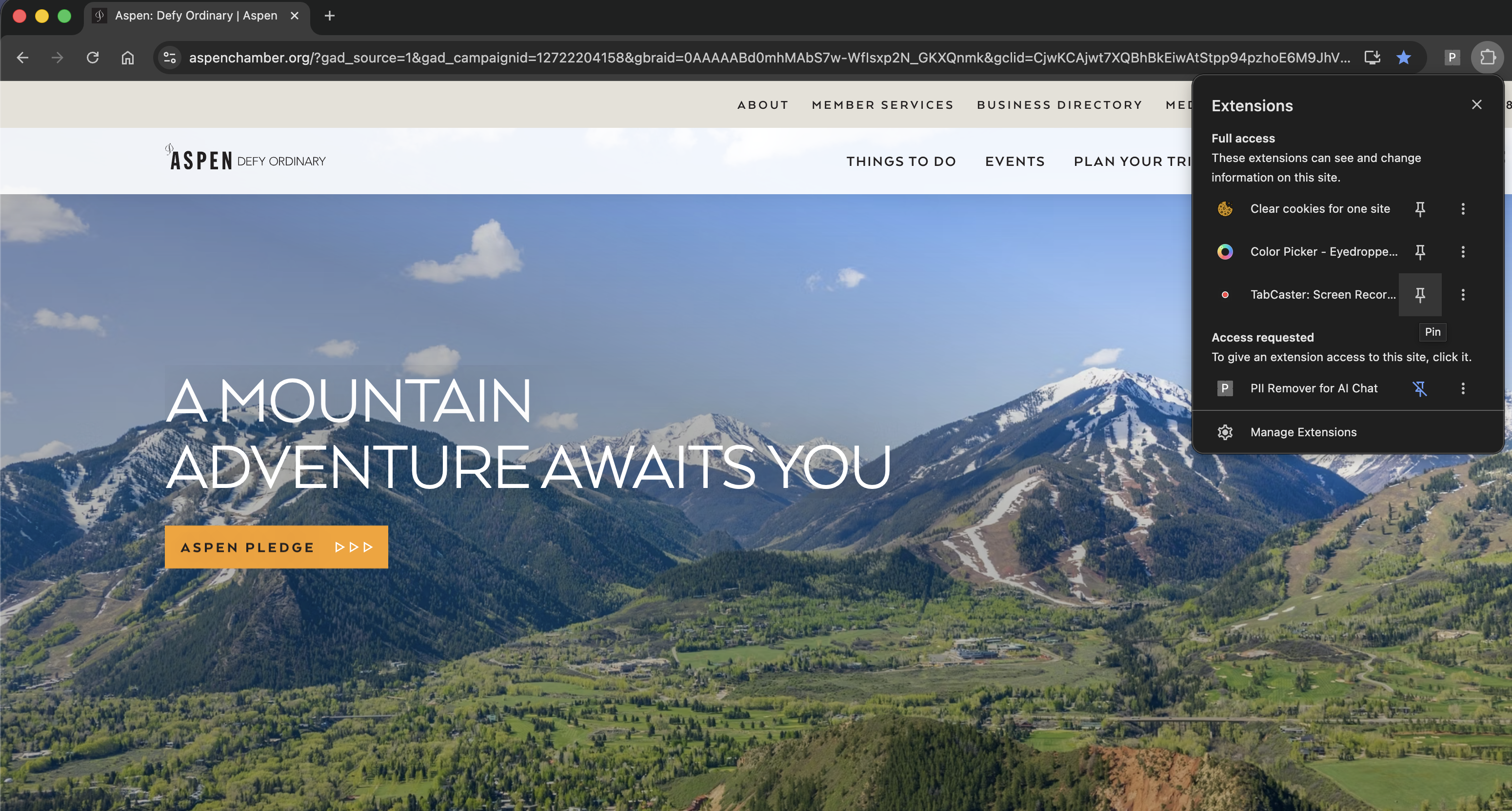
Install TabCaster from the Chrome Web Store and pin it to the toolbar for quick access.
- 2
Join your Google Meet session and wait until the call is active.
- 3
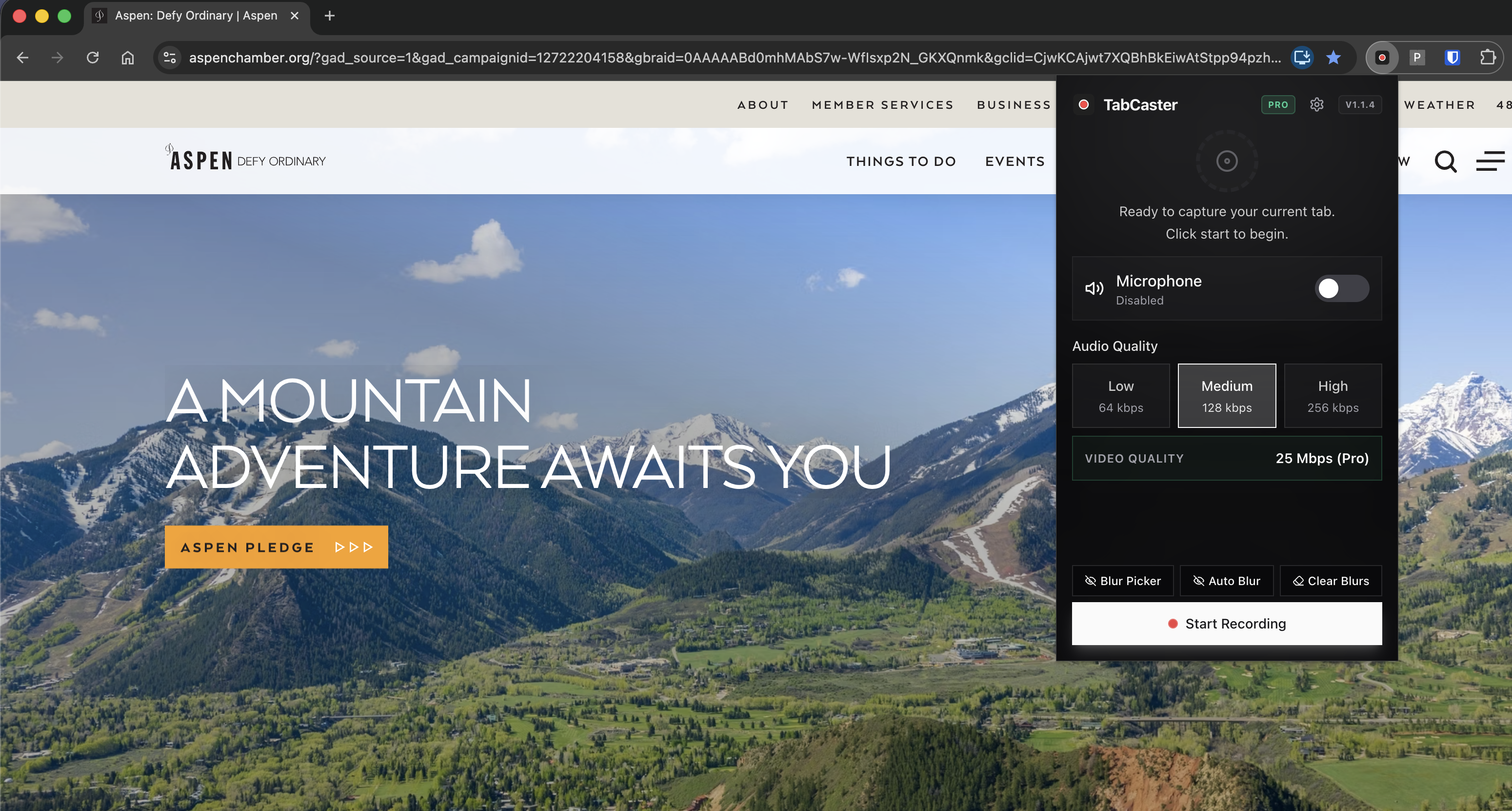
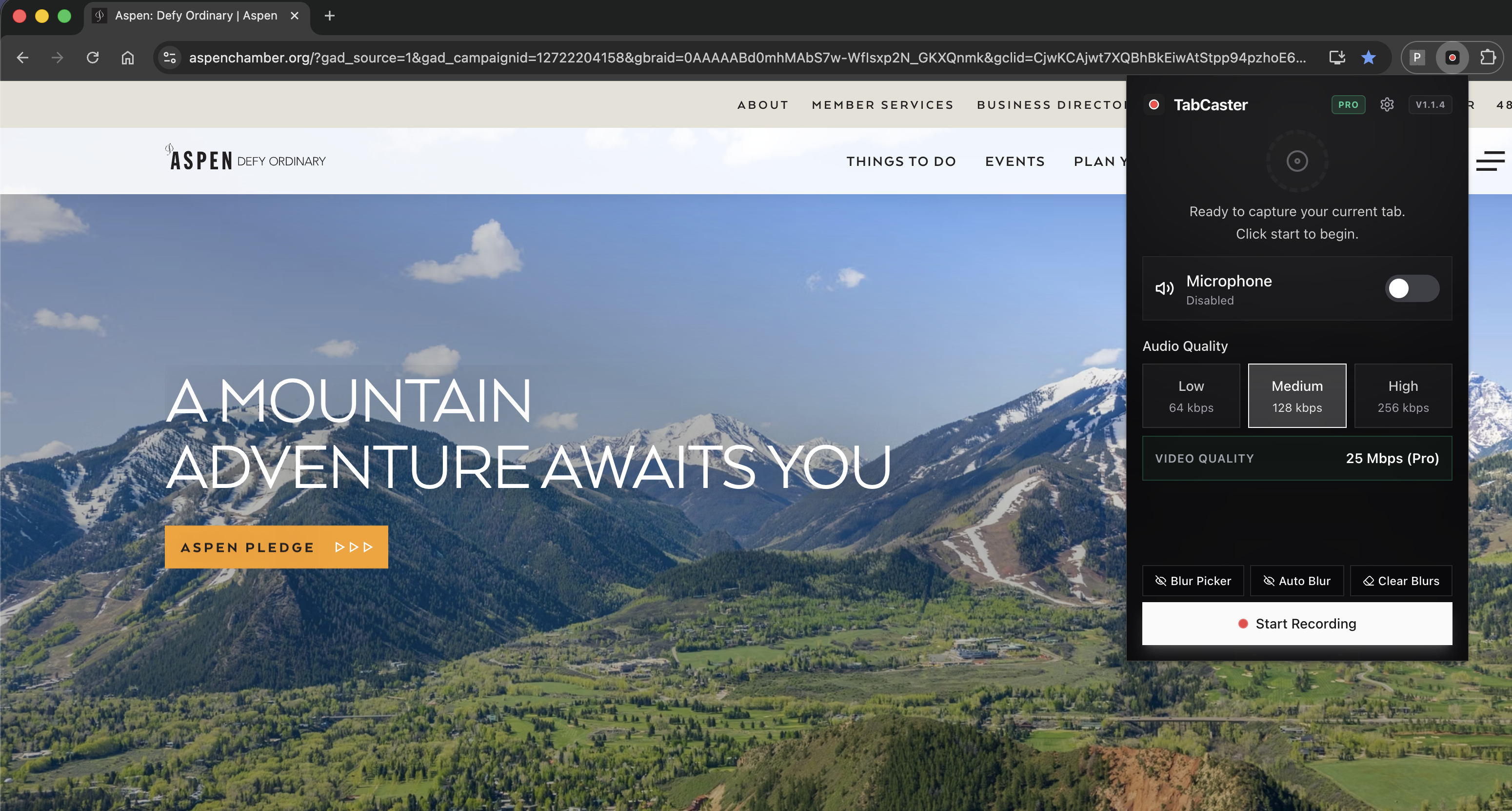
Click the TabCaster icon in the toolbar and choose whether to include microphone audio.
- 4
Click Record. Chrome will ask which tab or screen to share — select the Google Meet tab.
- 5
TabCaster starts recording. A red dot appears in the tab title to confirm capture is active.
- 6
Click Stop Recording when the meeting ends. The WebM or MP4 file saves automatically to Downloads.
Why TabCaster works when Meet's built-in recording is unavailable
Google Meet's built-in recording requires a Google Workspace Business Standard plan or higher. TabCaster records the tab directly in the browser using Chrome's MediaRecorder API — no Workspace plan needed, no recording saved to Google Drive, and no notification sent to participants about a cloud recording.
Comparison
TabCaster vs Google Meet's built-in recording
| Need | TabCaster | Alternative |
|---|---|---|
| No Workspace plan required | Works with any Google account — no paid Workspace tier needed. | Meet's built-in recording requires Business Standard or higher. |
| File stays local | Saves directly to Downloads; nothing goes to Google Drive automatically. | Built-in recordings save to the host's Google Drive and generate a shared link. |
| Participant notification | No in-meeting recording banner is shown to other participants. | Meet notifies all participants when the built-in recording starts. |
| Transcripts and captions | Not included — use Meet's live captions during the call instead. | Workspace plans include automatic transcripts alongside the recording. |
Privacy
Recording a meeting that includes other people
TabCaster saves the file locally and never uploads it automatically. That said, recording a meeting with other participants carries obligations: inform attendees that you are recording, follow your organization's meeting recording policy, and check local consent laws before recording calls with external parties.
Limitations
What to know before recording
- TabCaster records what is visible in your browser tab — if a participant shares their screen and it fills the Meet window, that shared content will be in the recording.
- Your own camera and microphone are in the recording only if you toggle microphone on and your face is visible in the Meet tab you selected.
- Very long meetings may produce large files; available browser memory and disk space set the practical limit.
- TabCaster does not generate transcripts or captions — use Google Meet's built-in captioning during the call if a transcript is needed.
FAQ
Practical questions
Answers are visible for readers. This page does not depend on FAQ rich-result markup.
Can I record Google Meet without a Workspace plan?
Yes. TabCaster uses Chrome's browser recording API and does not depend on Google Meet's built-in recording feature, which requires a paid Workspace plan.
Will other participants know I am recording?
TabCaster does not trigger Google Meet's recording notification banner. However, you should still inform attendees and follow applicable consent laws before recording any call.
Does TabCaster capture screen shares inside Meet?
Yes — if someone shares their screen and it appears in your Meet tab, TabCaster will capture it as part of the tab recording.
What format is the recording saved in?
TabCaster saves to WebM (VP9) by default or MP4 (H.264) depending on your settings. Both formats play in modern browsers and can be converted if your workflow needs a different format.
Related
Keep going
TabCaster features
See the core recording, audio, privacy, WebM, and Pro quality features.
Privacy notes
Review how local recording, downloads, and browser permissions are described.
Record browser tab with audio
Detailed guide to mic and tab audio settings before you record.
Private screen recorder
Understand the local recording workflow and what 'no cloud upload' means in practice.
Record the tab, keep the file.
Install TabCaster, record a focused browser workflow, and save a local WebM file without a required cloud upload.
Add to Chrome Free