Record browser tab with audio
Record a browser tab with your voice and tab audio
Who this is for
Built for a specific recording job
These pages are written for people deciding whether TabCaster fits a real workflow, not for generic screen recording theory.
People creating narrated product walkthroughs, lessons, bug reports, or support videos.
Teams that need both what happened on screen and why it happened.
Users who want the browser audio included without recording the full desktop.
Workflow
Set up clean audio before recording
Good audio makes a short screen recording much easier to understand. Prepare the mic and tab sound before you start.
- 1
Connect your microphone and test input level in the operating system.
- 2
Open the tab with the browser audio you want to include.
- 3
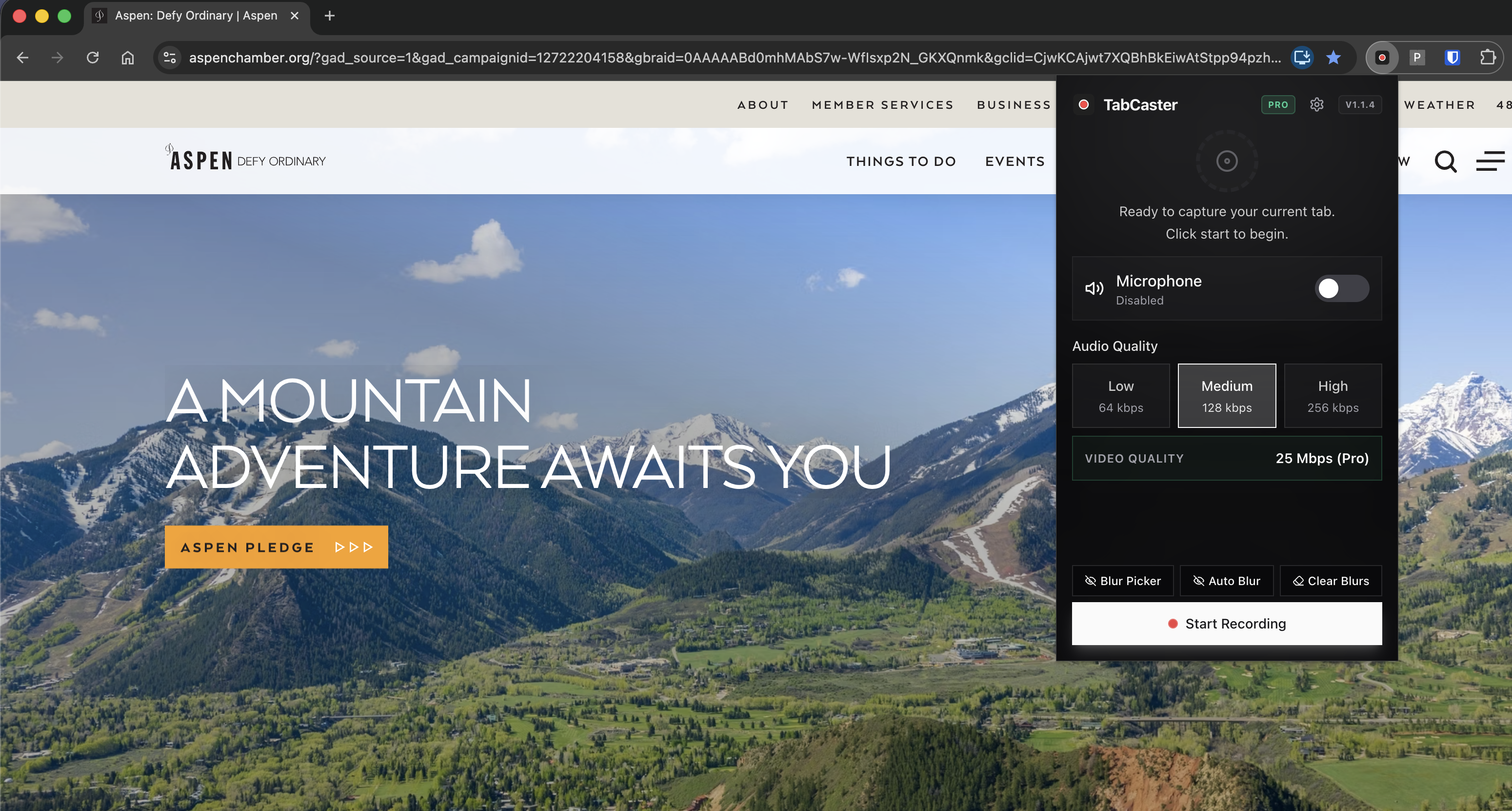
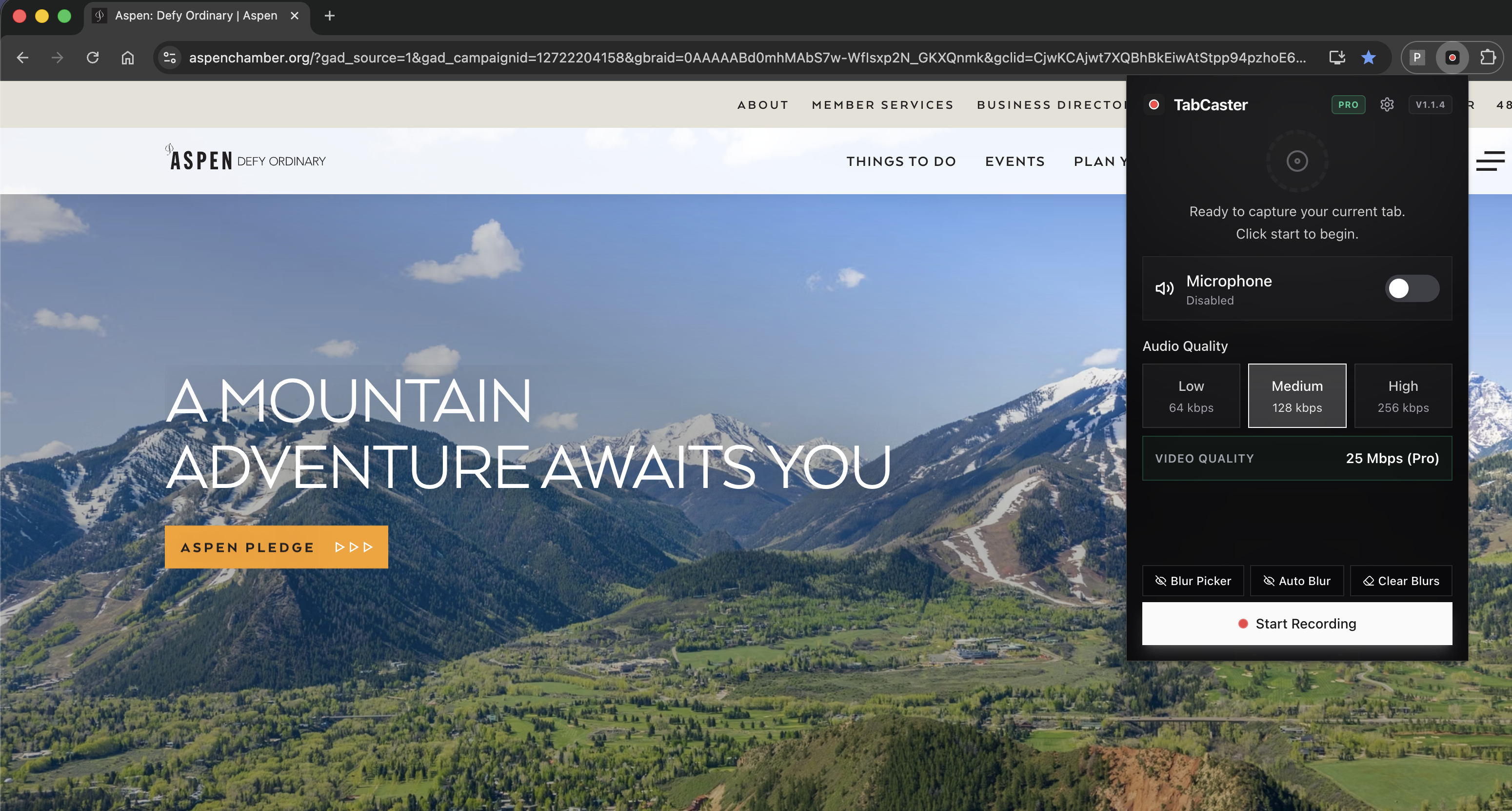
Choose microphone and tab audio settings in TabCaster.
- 4
Record a short test clip, play it back, then record the final walkthrough.
Why narration and browser audio together save a follow-up meeting
Tab audio captures the product, video, or app sound. Microphone narration captures your explanation. Together they make demos, lessons, and bug reports easier to understand without a follow-up meeting.
Privacy
Audio privacy
Close unrelated tabs and mute notifications before recording. TabCaster focuses on the selected tab, but you should still avoid capturing private conversations, customer names, or notification sounds.
Limitations
What to know before recording
- Audio capture behavior can vary by browser, OS, device policy, and permission settings.
- Poor microphone input will still produce poor narration; test before important recordings.
- Some destinations may require MP4 conversion after WebM export.
FAQ
Practical questions
Answers are visible for readers. This page does not depend on FAQ rich-result markup.
Can I record both mic and tab audio?
Yes. TabCaster is designed for narrated recordings that can include browser tab audio.
Why is my audio missing?
Check Chrome permissions, operating system microphone input, tab mute state, and whether your browser supports the selected audio capture path.
Should I use headphones?
Headphones can reduce echo when recording tab audio and microphone narration at the same time.
Record the tab, keep the file.
Install TabCaster, record a focused browser workflow, and save a local WebM file without a required cloud upload.
Add to Chrome Free