How to record Microsoft Teams
How to record a Microsoft Teams meeting from your browser
Who this is for
Built for a specific recording job
These pages are written for people deciding whether TabCaster fits a real workflow, not for generic screen recording theory.
People on Microsoft 365 plans that don't include built-in meeting recording (Business Basic and below).
Meeting participants who want a local copy without asking the host to start a cloud recording.
Teams users who need the recording file immediately rather than waiting for a cloud-processed video.
Workflow
Step-by-step: record a Teams meeting using the browser
TabCaster records the browser tab where Teams is running. Using Teams in the browser (teams.microsoft.com) rather than the desktop app gives you the cleanest tab-capture experience.
- 1
Open teams.microsoft.com in Chrome and join your meeting from the browser, not the desktop app.
- 2
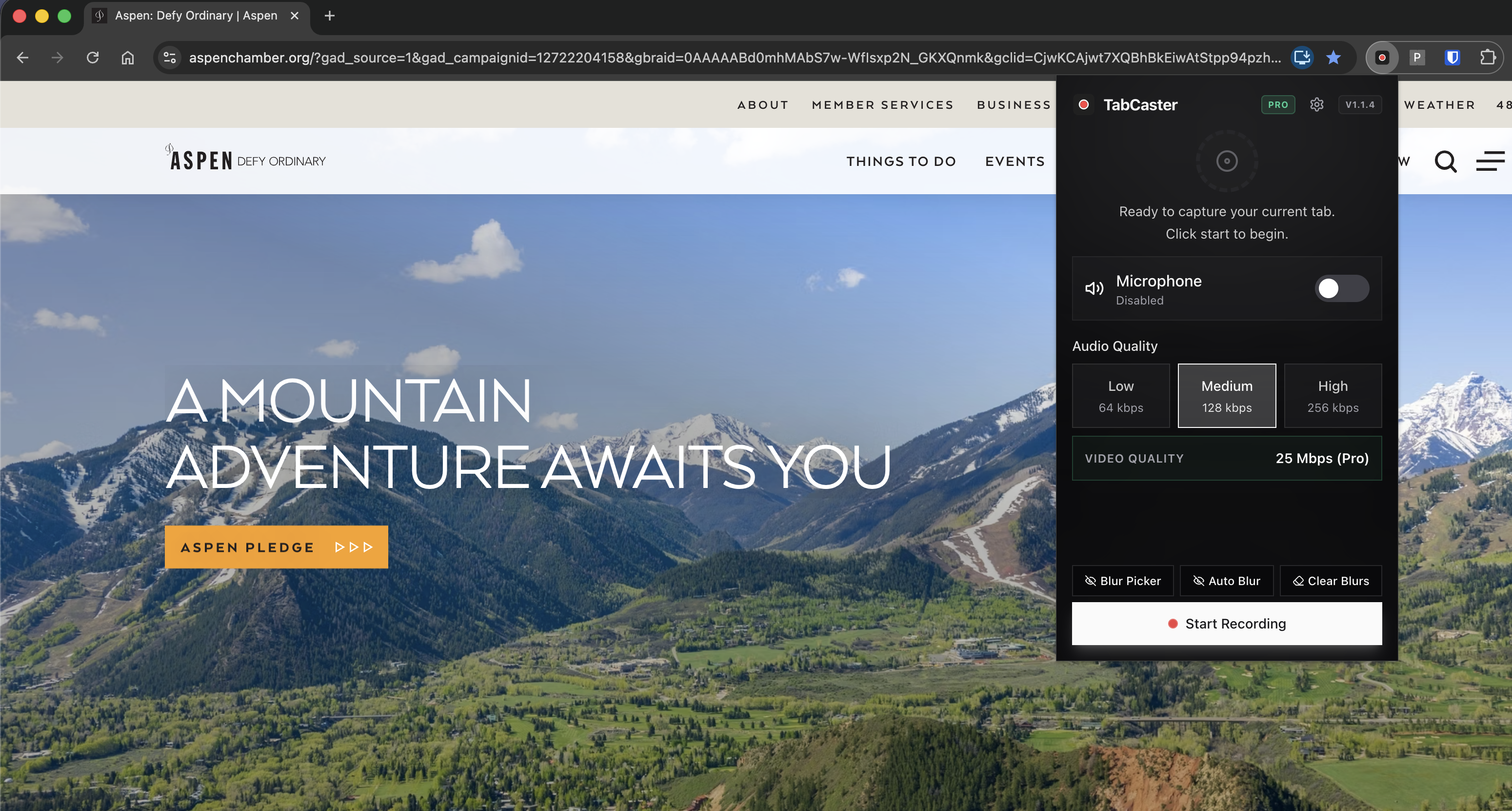
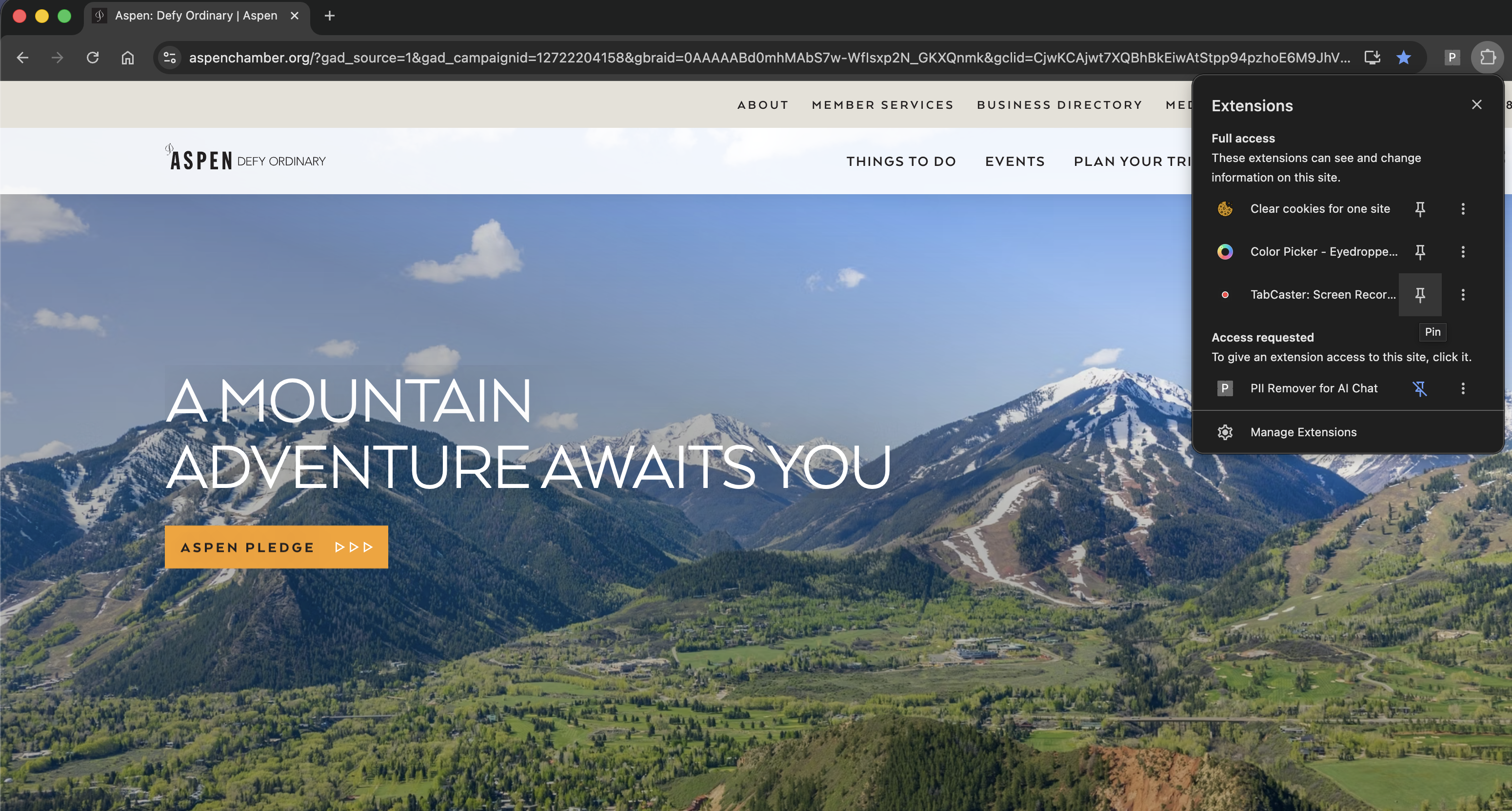
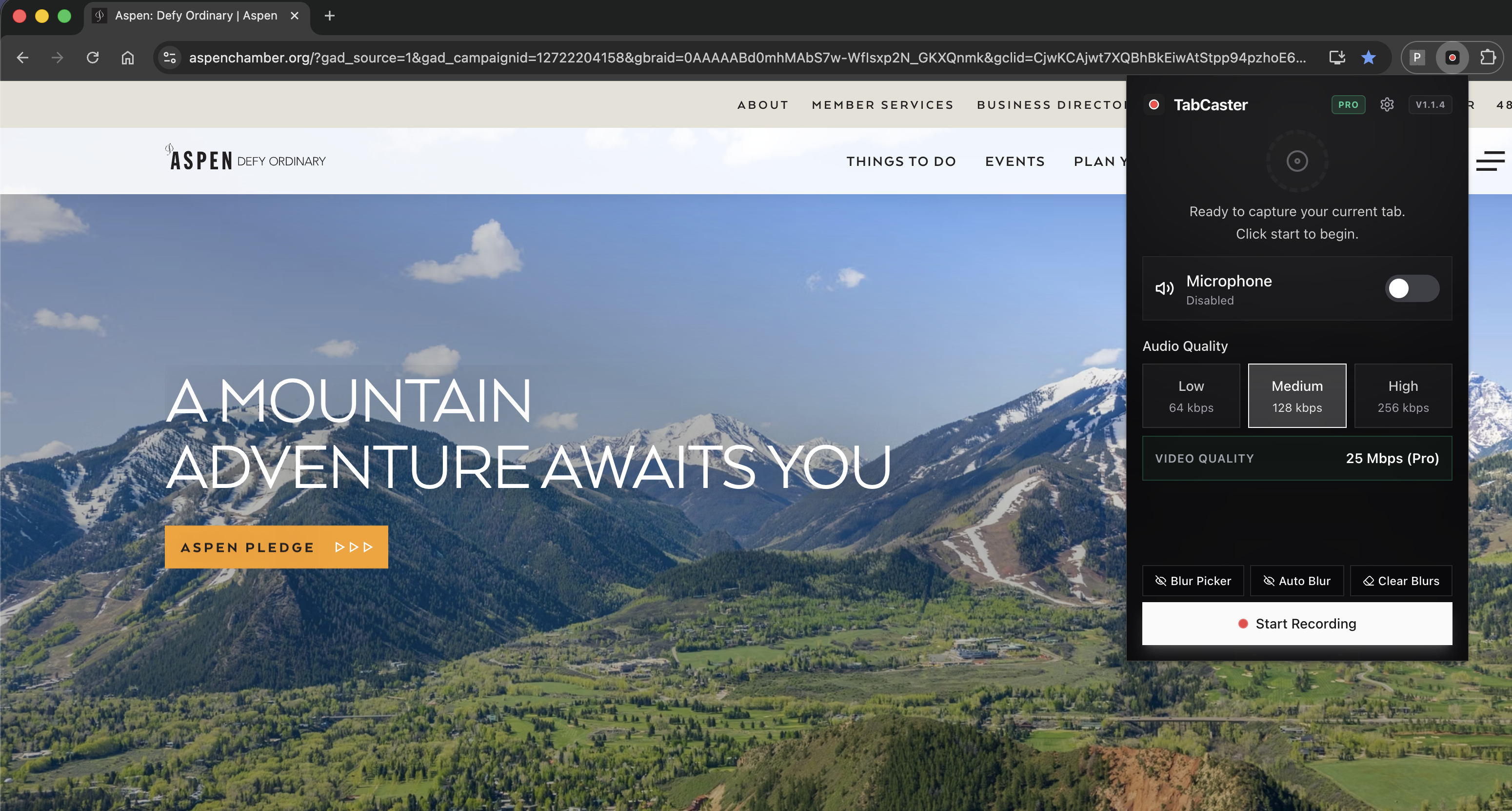
Once in the meeting, click the TabCaster icon in the Chrome toolbar.
- 3
Toggle microphone on if you want your own narration included alongside the meeting audio.
- 4
Click Record. Chrome will ask which tab or screen to share — select the Teams meeting tab.
- 5
A red dot appears in the tab title confirming capture is active. The meeting runs normally.
- 6
Click Stop Recording when the meeting ends. The file saves automatically to Downloads as WebM or MP4.
Why TabCaster works when Teams built-in recording is unavailable
Microsoft Teams' built-in recording requires a Microsoft 365 Business Standard plan or higher and saves to OneDrive or SharePoint. TabCaster records the Teams tab directly in Chrome using the browser's MediaRecorder API — no plan upgrade needed, no cloud processing delay, and the file lands in Downloads the moment you stop recording.
Comparison
TabCaster vs Teams built-in recording
| Need | TabCaster | Alternative |
|---|---|---|
| No Microsoft 365 paid plan required | Works with any Microsoft account — no Business Standard plan needed. | Teams built-in recording requires Business Standard or higher. |
| File available immediately | Recording saves to Downloads the moment you stop — no cloud processing wait. | Teams recordings process in the cloud and appear in OneDrive or SharePoint after a delay. |
| File stays local | Saves to Downloads only. Nothing sent to Microsoft cloud automatically. | Teams built-in recordings always go to OneDrive or SharePoint. |
| Automatic transcripts | Not included — use Teams live captions during the call instead. | Teams built-in recording on eligible plans includes automatic transcription. |
Privacy
Recording meetings with other participants
TabCaster records locally and never uploads automatically. However, recording a meeting with others carries legal and policy obligations: inform all participants you are recording, follow your organization's meeting policy, and check local consent laws before recording calls that include people outside your company.
Limitations
What to know before recording
- TabCaster records the Teams browser tab — if you are using the Teams desktop app instead of teams.microsoft.com, switch to full-screen recording mode in TabCaster to capture it.
- Teams desktop app users: select 'Entire screen' instead of a tab when Chrome prompts for the capture source.
- TabCaster does not generate transcripts — use Teams' live captions or a separate transcription tool for that.
- The recording captures your view of the meeting (your layout, your pinned participants) — not a standardized multi-participant grid.
- Very long meetings produce large files; available disk space and browser memory set the practical limit.
FAQ
Practical questions
Answers are visible for readers. This page does not depend on FAQ rich-result markup.
Can I record Teams without a Microsoft 365 plan?
Yes. TabCaster records the Teams browser tab using Chrome's recording API — it does not depend on Microsoft's built-in recording feature.
Should I use Teams in the browser or the desktop app?
The browser (teams.microsoft.com) gives the cleanest tab-capture experience. If you must use the desktop app, switch TabCaster to full-screen recording mode and select the entire screen instead of a tab.
Will Teams notify other participants that I am recording?
TabCaster does not trigger Teams' recording notification. You are still responsible for informing participants and following applicable consent laws.
Where does the recording save?
The file saves directly to your Downloads folder as WebM or MP4 — no OneDrive, no SharePoint, no cloud upload.
Related
Keep going
TabCaster features
See the core recording, audio, privacy, WebM, and Pro quality features.
Privacy notes
Review how local recording, downloads, and browser permissions are described.
How to record Google Meet
Same workflow for Google Meet — tab recording with no Workspace plan needed.
Record browser tab with audio
Set up microphone and tab audio before recording any meeting.
Record the tab, keep the file.
Install TabCaster, record a focused browser workflow, and save a local WebM file without a required cloud upload.
Add to Chrome Free