Screen recorder for customer success
Replace long support emails with short browser walkthroughs
Who this is for
Built for a specific recording job
These pages are written for people deciding whether TabCaster fits a real workflow, not for generic screen recording theory.
Customer success managers sending onboarding walkthroughs instead of writing multi-step setup emails.
CS teams answering recurring 'how do I...' questions with a reusable recorded clip.
Account managers recording a QBR prep walkthrough or feature tour before a call.
Workflow
Replace the 12-step email with a 90-second recording
The most common CS recording scenario: a customer asks how to do something, and the written answer is confusing. Record it once, send the clip, reuse it for the next customer who asks the same question.
- 1
Open your product in a demo or internal account — avoid recording real customer data unless your policy permits it.
- 2
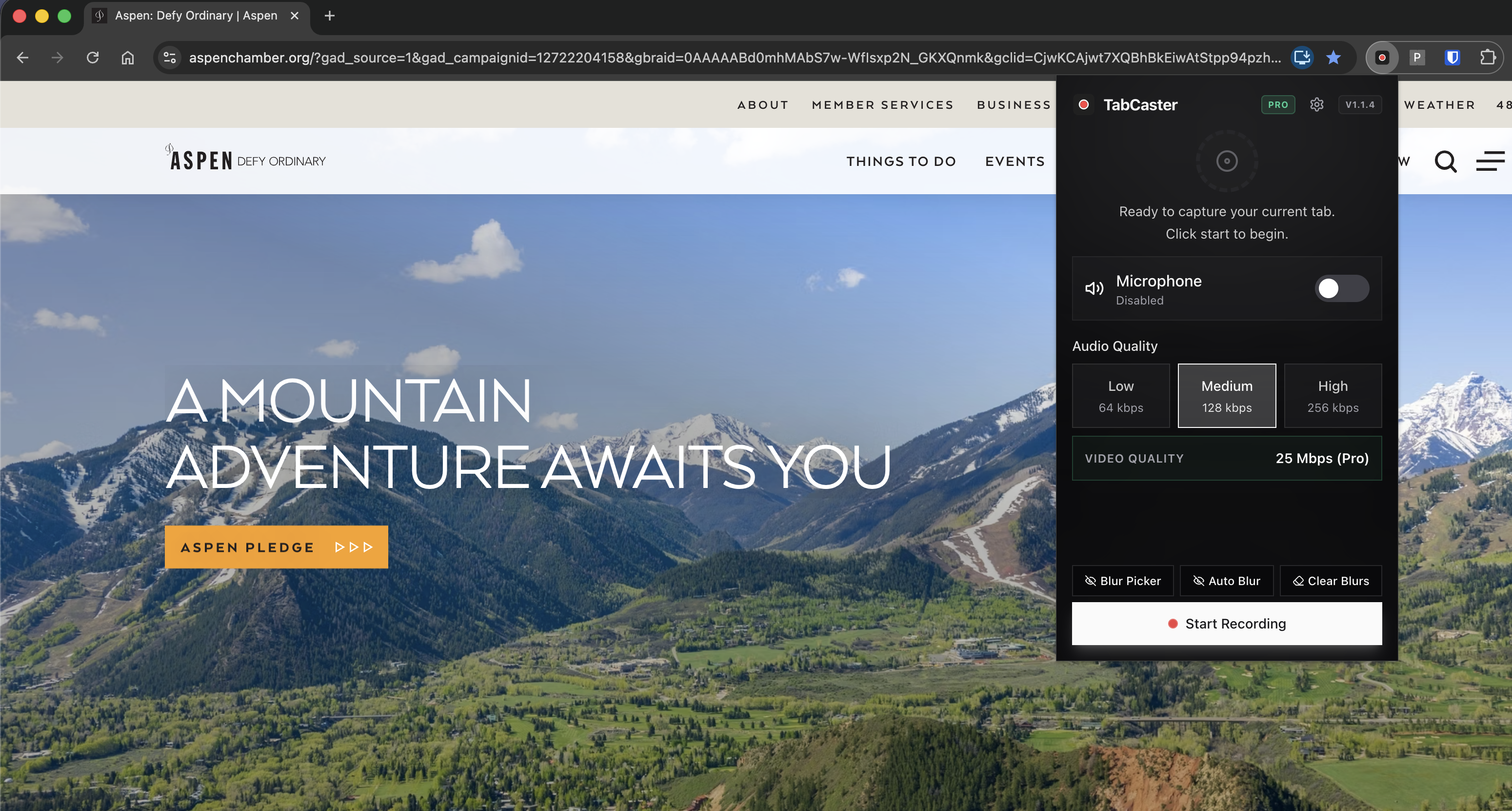
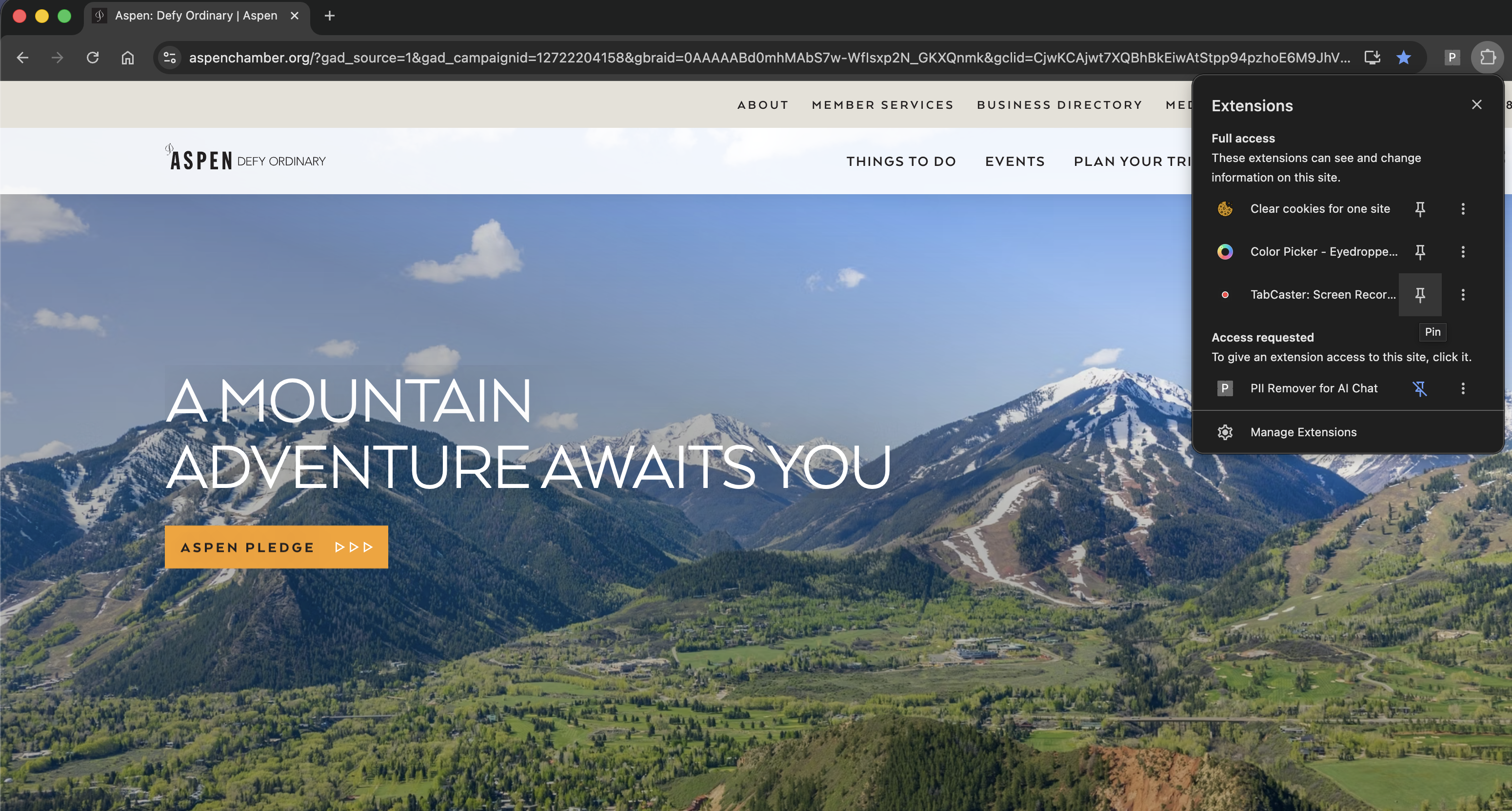
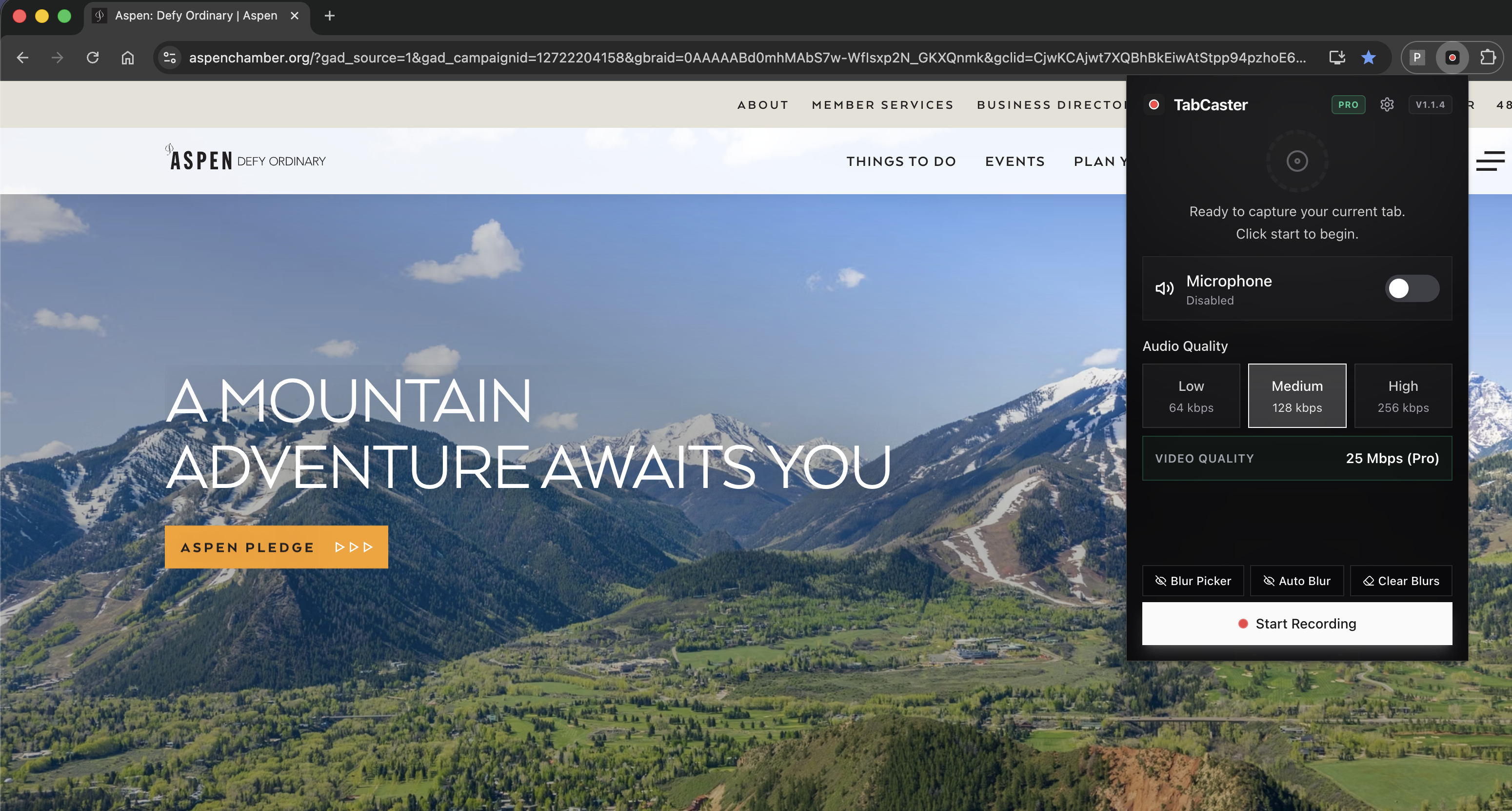
Click the TabCaster icon, turn on microphone, and click Record.
- 3
Navigate to the feature or workflow the customer asked about. Narrate each step as you go: 'Click Settings in the top right, then go to Integrations.'
- 4
Keep the recording under two minutes — short clips get watched; long ones get skipped.
- 5
Stop recording. The WebM or MP4 file saves to Downloads.
- 6
Attach the file to your support ticket, paste it into Intercom, Zendesk, or Slack, or upload it to your help center.
Why video answers get better results than written guides
A 90-second walkthrough showing exactly where to click takes less time to make than a written step-by-step, and customers follow it more reliably because they can see the actual UI. CS teams that record answers to recurring questions also build a reusable library — record once, send many times.
Privacy
Recording product workflows that may show customer data
Always use a demo account or sanitized internal environment when recording walkthroughs for customers. If real account data appears on screen, use TabCaster's blur to obscure names, emails, or account identifiers before you start recording. Review the clip before sending — even with blur, check that nothing sensitive made it into the final file.
Limitations
What to know before recording
- TabCaster produces a video file — it does not host, track views, or generate sharing links. Use your existing support platform or file storage to distribute the recording.
- If your helpdesk requires MP4 for inline video preview, convert the WebM file before attaching.
- TabCaster records the browser tab, not native desktop apps. For product workflows that run outside the browser, switch to full-screen recording mode.
- The recording captures your demo account view, which may differ from what the customer sees in their specific plan or permission level.
FAQ
Practical questions
Answers are visible for readers. This page does not depend on FAQ rich-result markup.
How long should a CS walkthrough recording be?
Under two minutes for most feature questions. Longer onboarding recordings (5–10 minutes) work for complex multi-step workflows, but break them into chapters when possible.
Can I reuse the same recording for multiple customers?
Yes — if the workflow is the same for all customers on a given plan, record it once and attach it to every ticket that asks the same question.
What if the customer is on a different plan with different UI?
Record separate clips for meaningfully different plan tiers. Sending a clip that shows features the customer doesn't have access to creates more confusion.
Does TabCaster host the video for me?
No. TabCaster saves a local file. You attach it, upload it to your help center, or share it through your support platform.
Related
Keep going
TabCaster features
See the core recording, audio, privacy, WebM, and Pro quality features.
Privacy notes
Review how local recording, downloads, and browser permissions are described.
Screen recorder for support teams
Recording internal bug escalations and support issue reproductions.
Screen recorder for product demos
Record polished product demos for prospects and launch announcements.
Record the tab, keep the file.
Install TabCaster, record a focused browser workflow, and save a local WebM file without a required cloud upload.
Add to Chrome Free