Chrome screen recorder
Record a Chrome tab with audio and save the file locally
Who this is for
Built for a specific recording job
These pages are written for people deciding whether TabCaster fits a real workflow, not for generic screen recording theory.
Anyone explaining a browser workflow that does not need full-desktop recording.
Support, QA, and product teams who need quick visual context.
Users who want a local file instead of a mandatory cloud upload.
Workflow
A practical Chrome tab recording workflow
TabCaster is designed for the common case where the important action happens inside one browser tab.
- 1
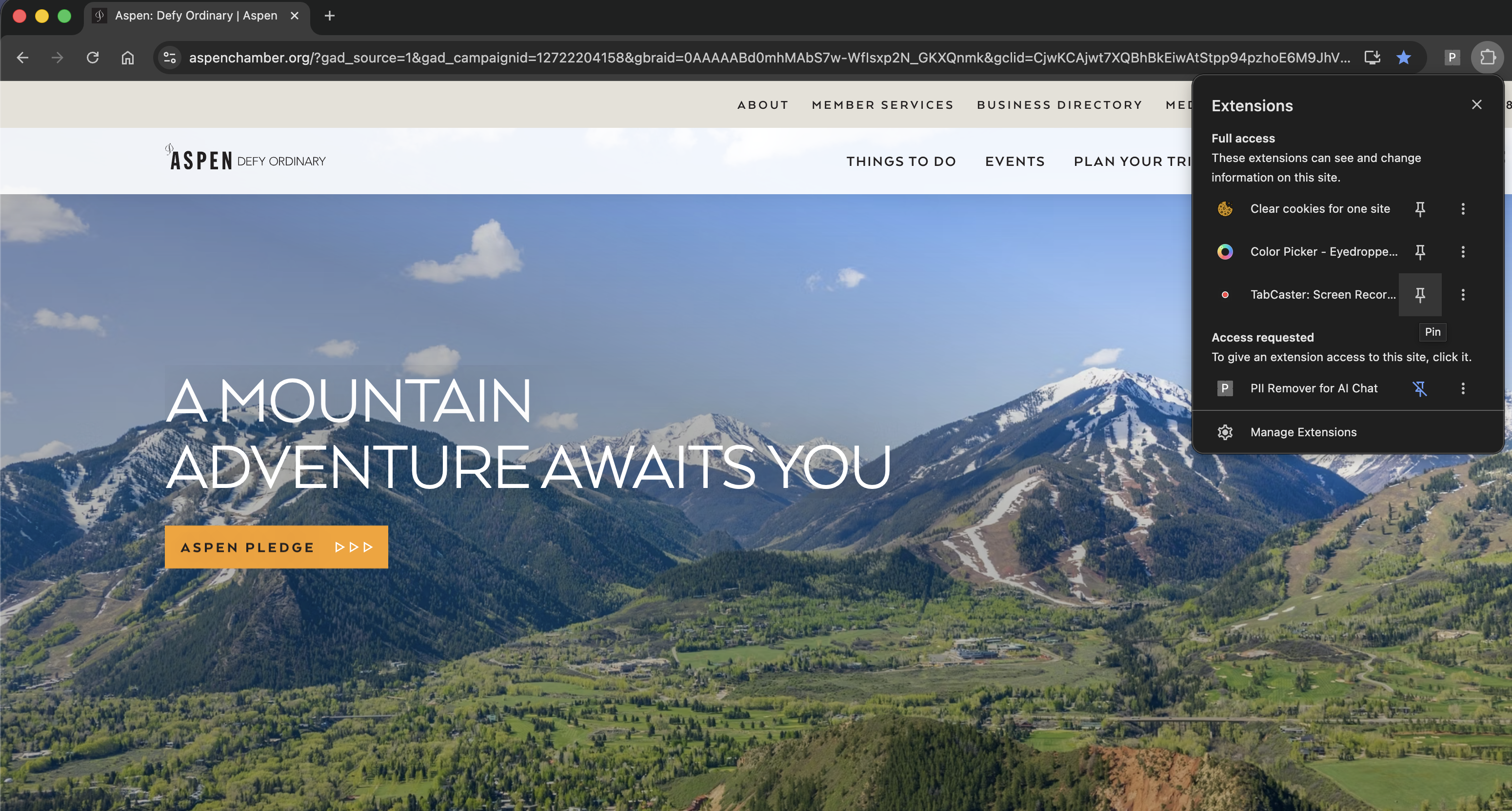
Pin TabCaster to the Chrome toolbar so recording is one click away.
- 2
Open the exact tab you want to capture and close unrelated noisy tabs.
- 3
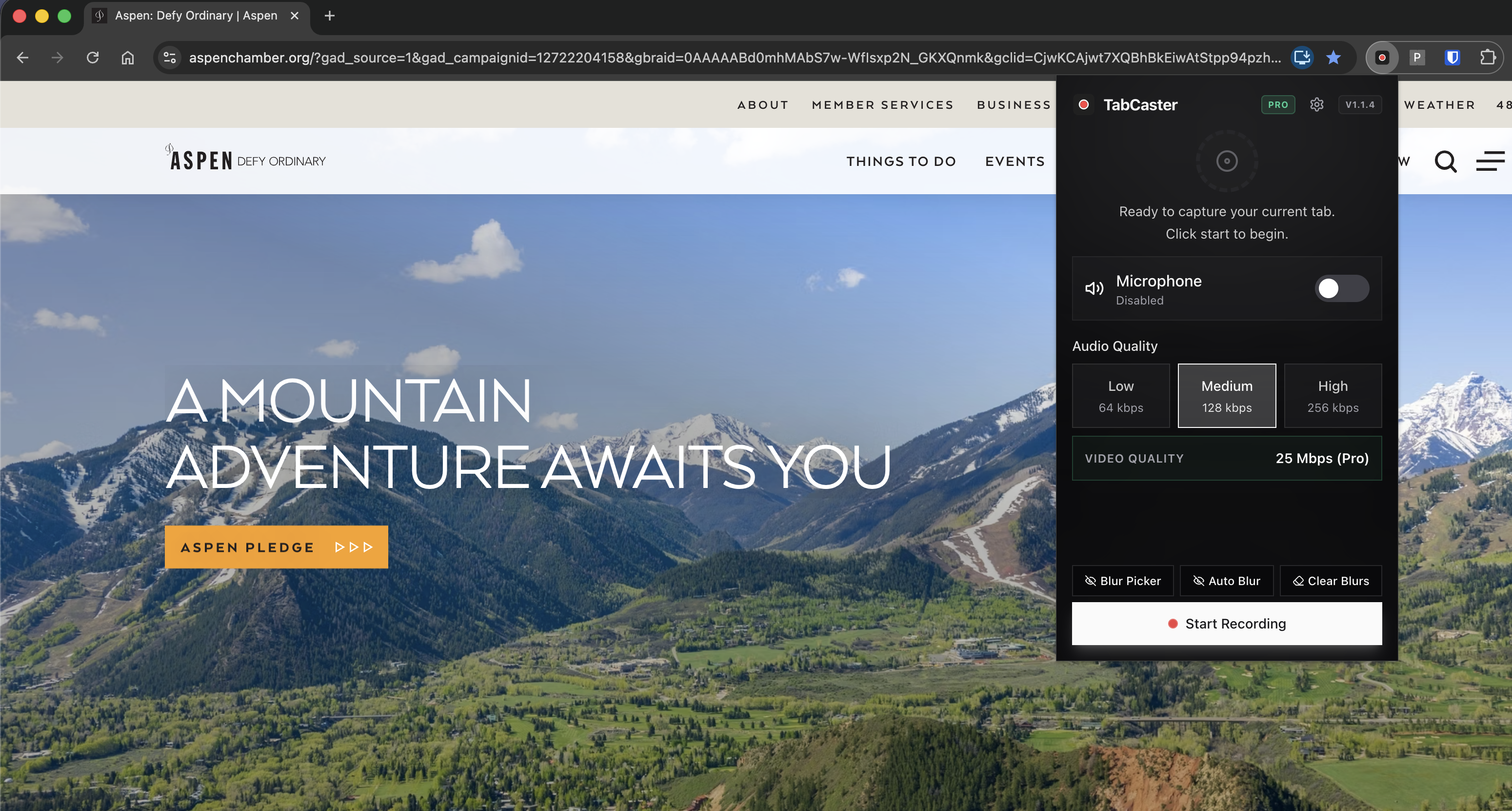
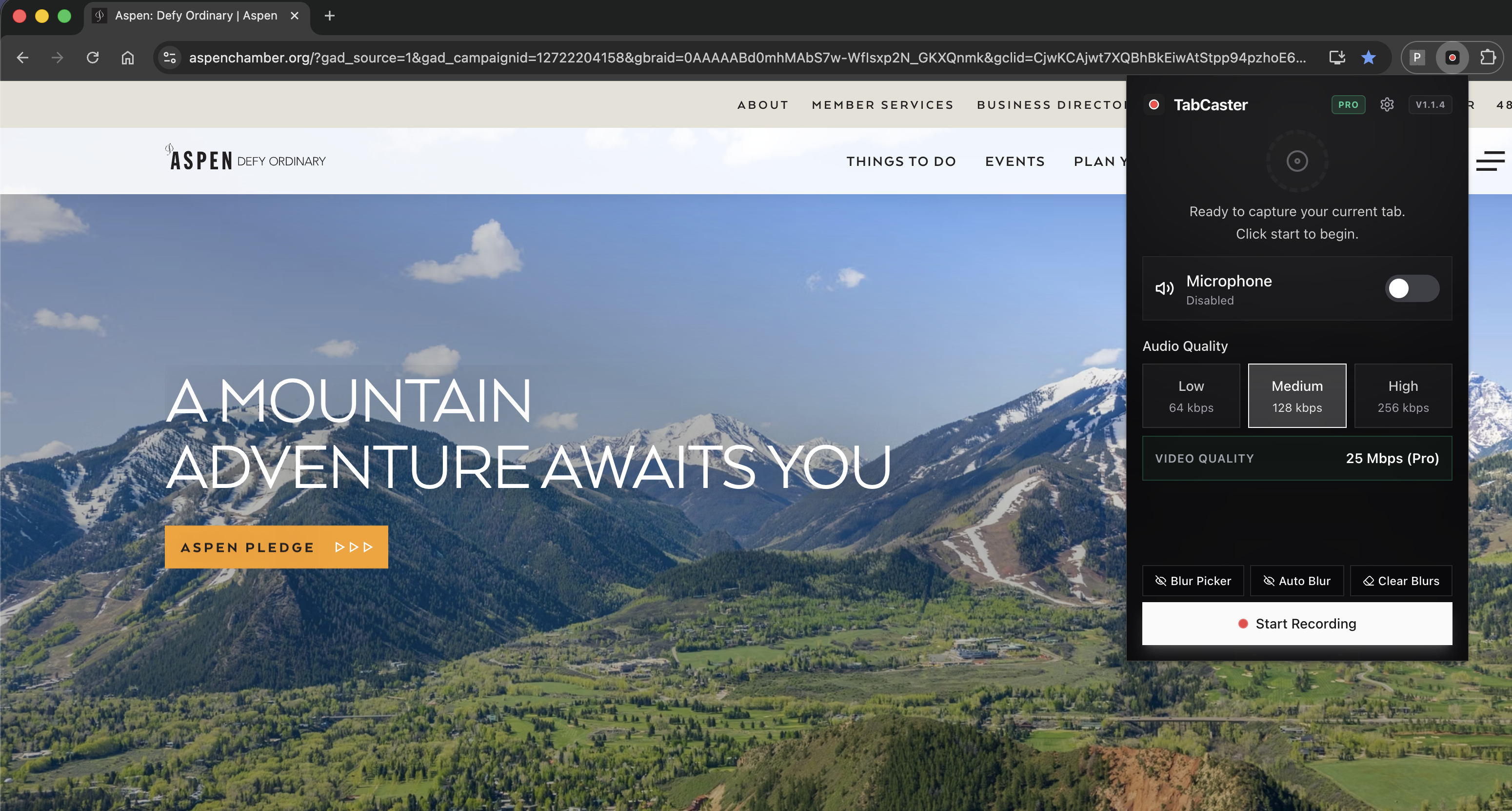
Choose microphone and tab audio options.
- 4
Start recording, complete the workflow, stop, and find the WebM file in Downloads.
Why recording one tab produces cleaner walkthroughs
Full-screen recorders capture everything on the desktop. TabCaster focuses on the selected browser tab, which keeps walkthroughs cleaner and reduces the chance that unrelated windows appear in the video.
Privacy
Privacy posture
Because recordings are created locally and saved to Downloads, you decide where the file goes next. Review the visible tab before recording and use blur for sensitive data when needed.
Limitations
What to know before recording
- TabCaster is focused on browser tabs, not full desktop capture.
- Chrome permission prompts are part of the browser capture flow.
- Long recordings depend on local browser memory and available disk space.
FAQ
Practical questions
Answers are visible for readers. This page does not depend on FAQ rich-result markup.
Can TabCaster record outside Chrome?
TabCaster is built for Chrome and Chromium-based browser tab recording.
Does it record microphone audio?
Yes. You can include microphone narration when you want to explain what is happening.
Where does the recording go?
The finished WebM file is saved to your Downloads folder.
Record the tab, keep the file.
Install TabCaster, record a focused browser workflow, and save a local WebM file without a required cloud upload.
Add to Chrome Free