How to Record Bug Reports with Audio
Use browser tab recordings with narration to show reproducible issues, browser state, and expected behavior.
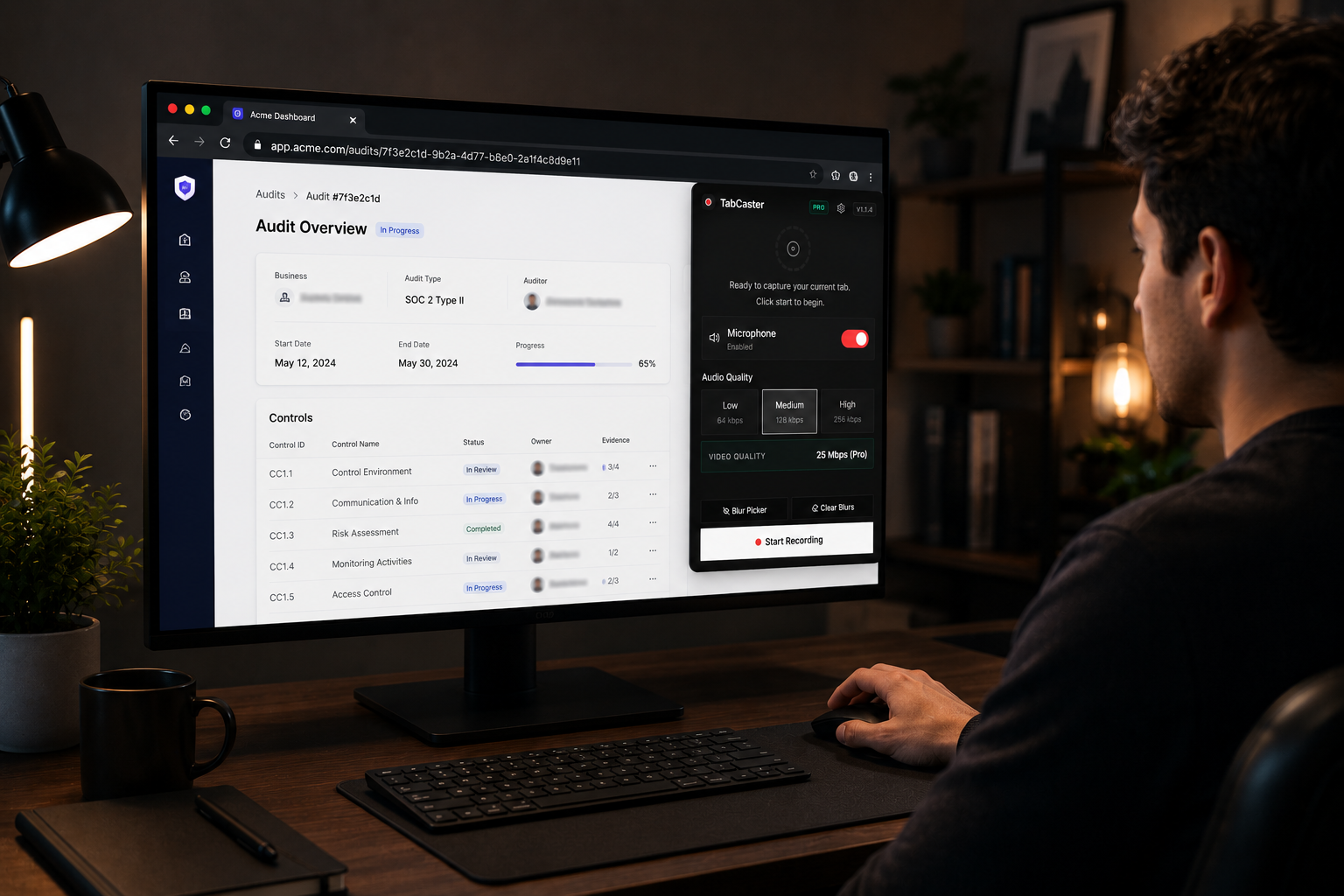
To record a bug report with audio in Chrome, install the TabCaster extension, navigate to the page showing the issue, click the toolbar icon, enable your microphone, and reproduce the bug while narrating what you expected versus what actually happened. The resulting WebM file — typically under 10 MB for a two-minute recording — can be attached directly to a Jira ticket, GitHub issue, or Slack message.
A narrated screen recording replaces multiple paragraphs of written description. Developers reading plain-text bug reports spend significant time inferring context that a 90-second video makes immediately obvious — the exact steps, the precise UI state, and the reporter’s intent in a single file.
Why Audio Makes Bug Reports Better
A screen recording without audio shows what happened, but it does not show what you expected to happen. That distinction matters enormously when triaging bugs. A silent recording of a checkout page might show a form submission, a brief loading spinner, and then nothing. Is that the bug? Did the page freeze? Was there supposed to be a confirmation screen?
With microphone narration, you can explain your intent as you demonstrate the issue. You might say, “I’m clicking the submit button here, and normally I would see a confirmation message, but instead the page just reloads.” That single sentence gives the developer more context than three paragraphs of written description ever could.
Narration is also useful for pointing out subtle issues that might not be obvious from the visuals alone — things like “notice the price changed when I switched tabs” or “this dropdown is supposed to have five options but only three are showing.”
What a Good Bug Recording Includes
The most useful bug recordings follow a simple structure. Start by briefly stating what you are about to demonstrate. Navigate to the relevant page or feature. Show the exact steps that trigger the issue. Point out what you expected to see versus what actually happened. If there are error messages in the console or network failures in the developer tools, show those too.
Keep the recording focused on a single issue. If you found three bugs during your testing session, record three separate videos rather than one long one. Short, focused recordings are easier to assign, easier to watch, and easier to reference later when someone asks “is this the same bug we saw last week?”
Most bug recordings should be under two or three minutes. If the reproduction steps are complex, consider recording only the minimal set of steps needed to trigger the issue and adding additional context in the ticket description.
Protecting Sensitive Information
Before you hit record, take a moment to check the page for sensitive data. Customer emails, billing information, API tokens, internal URLs, and personal details should not appear in a recording that might be shared across teams or attached to a ticket in a third-party tool.
TabCaster Pro includes automatic blur for common sensitive data patterns. Before you start recording, it can obscure details such as email addresses, card numbers, IP addresses, tokens, username fields, and password fields. The blur is applied before capture, which means sensitive content is hidden in the video file itself — it is not a post-processing filter that could be removed.
This is especially important in support and QA environments where the pages you are testing often contain real customer data. Taking thirty seconds to blur sensitive fields before recording is much better than discovering later that an API key was visible in a video you shared in a public Slack channel.
Making It Part of Your Workflow
The key to getting value from video bug reports is making the process fast enough that people actually do it. If recording a bug takes longer than typing up a description, most people will default to text. That is why the recording tool needs to live where the work happens — in the browser — with minimal setup required.
With a browser extension like TabCaster, the workflow becomes: see the bug, click the extension icon, enable your microphone, reproduce the issue, stop the recording, and attach the resulting file to your ticket. The whole process adds maybe ninety seconds to your bug reporting workflow, and the quality of the report improves dramatically.
Over time, teams that adopt video bug reports tend to see faster triage times, fewer back-and-forth clarification threads, and more accurate reproduction by developers. Adding roughly 90 seconds of recording time to each report consistently eliminates two or three follow-up messages per ticket — a net time saving for the whole team. It is one of those small process changes that compounds into a meaningful improvement.